


Shipping a computer isn’t just about putting it in a box—it’s about protecting a significant investment. Whether you’re relocating, selling a custom-built PC, or returning a defective unit, improper packaging can result in costly damage. A single drop during transit can destroy a graphics card, crack a motherboard, or shatter a monitor screen.
This comprehensive guide will walk you through everything you need to know about transporting computers safely using cardboard boxes. From selecting the right packaging materials to step-by-step packing instructions, we’ll help ensure your valuable electronics arrive at their destination intact.
Table of Contents
Why Proper Computer Packaging Matters for Safe Transport
Computers are among the most fragile and valuable items you’ll ever ship. Understanding the risks is the first step toward preventing damage.
Understanding the Risks of Improper Computer Shipping
Your package will face multiple hazards during transit that you might not expect:
- Impact forces from drops: Packages can fall from conveyor belts, delivery trucks, or sorting facilities. Even a 3-foot drop can generate enough force to damage sensitive components.
- Constant vibration: During transport, your computer experiences continuous shaking that can loosen screws, dislodge connectors, and cause components to shift inside the case.
- Compression from stacking: Shipping facilities stack packages to maximize space. Your box must withstand the weight of other packages placed on top.
- Electrostatic discharge (ESD): Invisible but deadly to electronics, static electricity can fry circuits without leaving any visible damage.
According to carrier damage reports, approximately 23% of computer shipping damage occurs from inadequate cushioning, while 40% of motherboard damage happens when graphics cards are left installed during shipping.
How Quality Packaging Prevents Damage During Transit
Professional packaging creates multiple layers of protection. Think of it as a defensive system where each layer serves a specific purpose:
- The outer box shields against external impacts and compression
- Cushioning materials absorb shock and vibration
- Anti-static protection prevents electrical damage
- Proper orientation minimizes stress on components
When you invest in proper packaging materials and techniques, you’re not just protecting a product—you’re protecting your reputation, your customer relationships, and your bottom line.
Essential Materials for Safe Computer Transportation
Before you begin packing, gather all necessary materials. Using the right supplies can mean the difference between a successful delivery and a damaged computer.
Double-Wall Corrugated Cardboard Boxes: The Foundation of Protection
Not all cardboard boxes are created equal. For computer shipping, you need:
Double-wall corrugated boxes are essential for heavy electronics. These boxes feature two layers of fluting between three layers of linerboard, providing superior strength and durability. Look for boxes with a burst strength of 275 lbs or higher.
Box specifications to consider:
- Single-wall boxes: Adequate for lightweight peripherals (keyboards, mice, cables)
- Double-wall boxes: Required for desktop towers, monitors, and assembled PCs
- Triple-wall boxes: Recommended for servers and heavy workstations
Important: Always use new boxes for computer shipping. Used boxes have weakened corners and reduced structural integrity. A box that has already been through shipping once has already absorbed impact forces and won’t provide the same protection again.
💡 Pro Tip from Yian Packaging: As a professional cardboard box manufacturer, we recommend custom-sized double-wall boxes for computer shipping. Standard retail boxes often leave excessive void space, increasing damage risk. Custom boxes fit your products precisely, reducing material costs while improving protection. Contact us for custom sizing quotes.
Cushioning Materials: Bubble Wrap, Packing Peanuts, and Foam Corners
Different cushioning materials serve different purposes:
Bubble Wrap:
- Use anti-static pink bubble wrap for bare electronics
- Apply 3-4 inches of bubble wrap on all sides of the computer
- Wrap items bubble-side inward for better surface protection
- For desktop computers, use large-cell bubble wrap for the case and small-cell for components
Packing Peanuts:
- Fill the bottom of boxes with at least 2 inches of peanuts
- Surround items completely with peanuts on all six sides
- Warning: Don’t use peanuts for items heavier than 30 pounds—they compress under weight and allow shifting
- Always wrap items in plastic bags before using peanuts to prevent them from entering the computer case
Foam Corners and Blocks:
- Ideal for desktop computers and monitors
- Cut foam to fit snugly around the wrapped computer
- Minimum 1.5 inches of foam on all sides
- Professional shippers prefer foam because it doesn’t compress during transit
Anti-Static Packaging for Sensitive Electronic Components
Static electricity is an invisible enemy of electronics. You can’t see it, hear it, or feel it at low levels, but it can destroy sensitive circuits instantly.
Essential anti-static materials:
- Silver static-shielding bags: Required for motherboards, GPUs, RAM, and other bare components
- Anti-static bubble wrap: Pink or clear anti-static rated material
- Anti-static tape: For sealing anti-static bags and wrapping
Remember: Never place bare electronics directly in regular plastic bags or wrap them in newspaper. These materials generate static electricity that can damage your components.
Packing Tape and Sealing Essentials
Your tape choice matters more than you might think:
- Use pressure-sensitive packing tape at least 2 inches wide
- Look for tape with 2.2 mil thickness or higher
- Avoid masking tape, duct tape, or household tape—they fail under shipping stress
- Apply tape using the H-taping method: three strips on both top and bottom, plus center strips forming an “H” pattern
How to Choose the Right Cardboard Box for Your Computer
Selecting the correct box size and strength is crucial for safe transport. The wrong box can lead to damage even if you use the best cushioning materials.
Box Size Guidelines: The 3-Inch Rule for Computer Shipping
Professional electronics shippers follow the “3-inch rule” when selecting boxes:
Your box should be at least 3 inches larger than the computer on all sides—top, bottom, left, right, front, and back.
This creates a protective buffer zone that absorbs impacts before they reach your computer.
Box size calculations:
| Computer Type | Typical Dimensions | Minimum Box Size |
|---|---|---|
| Mid-tower PC | 18″ × 8″ × 18″ | 24″ × 14″ × 24″ |
| Full-tower PC | 22″ × 10″ × 22″ | 28″ × 16″ × 28″ |
| Gaming PC | 20″ × 9″ × 20″ | 26″ × 15″ × 26″ |
| Laptop | 15″ × 11″ × 2″ | 21″ × 17″ × 8″ |
| Monitor (24″) | 22″ × 14″ × 4″ | 28″ × 20″ × 10″ |
For heavy PCs over 30 pounds, increase cushioning to 4-6 inches on all sides for extra protection.
Single-Wall vs Double-Wall Corrugated Boxes: Which to Choose
The difference between single-wall and double-wall boxes isn’t just about strength—it’s about whether your computer will survive the journey.
Single-Wall Boxes:
- Suitable for: Cables, keyboards, mice, small peripherals
- Not recommended for: Desktop computers, monitors, laptops
- Maximum weight: Up to 65 pounds
- Risk: May collapse under stacking weight
Double-Wall Boxes:
- Suitable for: Desktop towers, assembled PCs, monitors, laptops
- Maximum weight: Up to 95 pounds
- Benefits: Resists crushing, maintains shape under stacking
- Required for: Any computer shipping with original manufacturer packaging
Pro Tip: If you’re shipping a computer in its original manufacturer box, you MUST place that box inside a larger double-wall box. Original packaging is designed for retail display, not shipping stress.
Weight Capacity and Burst Strength Ratings Explained
Box strength is measured by two key ratings:
Burst Strength (Mullen Test):
- Measures the force needed to puncture the box wall
- Expressed in pounds per square inch (psi)
- For computers, look for 200+ psi for single-wall or 275+ psi for double-wall
Edge Crush Test (ECT):
- Measures stacking strength
- Higher ECT means the box can support more weight on top
- For computer shipping, choose boxes with ECT 32 or higher
A typical desktop computer weighing 25-35 pounds requires a box with at least 200 psi burst strength and ECT 32 rating.
Step-by-Step Guide: Preparing Your Computer for Packaging
Before you start wrapping, you need to properly prepare your computer. Skipping these steps can result in damage that proper packaging can’t prevent.
Backing Up Data Before Transport
Shipping involves risk—even with perfect packaging, accidents happen. Before you ship any computer:
- Create a complete backup of all important files
- Use cloud storage or external drives—don’t rely on the computer itself
- Verify your backup by checking that all files are accessible
- Consider removing sensitive data entirely if shipping for repair or sale
For data storage devices (hard drives, SSDs, memory sticks), always back up data before shipping. If the device is lost or damaged, your liability may be limited to only the cost of the storage medium, not the value of the data it contains.
Removing Components: GPUs, Hard Drives, and Expansion Cards
This is the single most important step in preparing a desktop computer for shipping. Leaving components installed is the #1 cause of shipping damage.
Components you MUST remove:
- Graphics Cards (GPUs): The highest priority. Modern GPUs weigh 2-4 pounds and are secured only by a PCIe slot and 1-2 screws. Shipping vibrations can snap the PCIe connector or crack the motherboard. High-end cards like RTX 4090s are particularly vulnerable due to their size and weight.
- Large CPU Coolers: Tower coolers over 1 pound can damage CPU sockets during transit. The leverage from vibration can crack the motherboard around the CPU mounting area.
- Hard Drives and SSDs: Remove to prevent data loss and physical damage from movement.
- RAM Modules: Can work loose and damage memory slots or short against other components.
- Expansion Cards: Sound cards, WiFi cards, capture cards, and any other add-on cards.
How to remove and pack components:
- Power off the computer and unplug all cables
- Ground yourself using an anti-static wrist strap
- Remove each component carefully
- Place each component in an anti-static bag
- Wrap bagged components in bubble wrap
- Label each bag clearly for easy reassembly
- Pack components in a separate smaller box within the main shipping box
Cable Management and Peripheral Organization
Loose cables can cause more problems than you might expect:
- They can tangle with components and cause damage
- They can shift during transit and create pressure points
- They can become projectiles inside the box
Best practices for cable organization:
- Disconnect all cables from the computer and peripherals
- Label each cable with masking tape indicating where it connects
- Coil cables loosely—never fold or crimp them
- Secure coiled cables with twist ties or velcro straps
- Place cables in a separate bag or small box
- Include a diagram showing cable connections for easy reassembly
Securing Loose Parts and Moving Components
After removing the main components, secure any remaining loose items:
- Tape case doors and panels that could open during shipping
- Secure optical drive bays with tape if they slide open easily
- Close any open expansion slots with their original covers
- Ensure all screws are tightened—loose screws can rattle and cause damage
Complete Packing Instructions for Desktop Computer Towers
Now that your computer is prepared, it’s time to pack it properly. Follow these steps for maximum protection.
Wrapping Techniques Using Bubble Wrap and Anti-Static Materials
The wrapping process creates multiple layers of protection:
Step 1: Prepare the Case
- Clean the case exterior to remove dust and debris
- Ensure all panels are secured and won’t open during transit
- Position the computer upright (as it sits on a desk)
Step 2: First Wrap Layer
- Wrap the entire case in anti-static bubble wrap
- Bubble side should face toward the computer
- Use anti-static tape to seal all seams completely
- Ensure full coverage with no gaps
Step 3: Second Wrap Layer
- Add another layer of regular bubble wrap for impact protection
- This outer layer can use standard bubble wrap
- Seal with packing tape
Step 4: Fill Internal Voids
- Stuff foam padding or bubble wrap into any hollow areas
- Pay attention to the inside of the case front
- Ensure the wrapped computer feels firm with no shifting
Test: Shake the wrapped computer gently. You shouldn’t hear any rattling or feel any movement inside.
Creating Cushioning Layers Inside the Cardboard Box
The cushioning system is your shock absorber:
Bottom Layer:
- Fill the bottom of the box with 3 inches of cushioning material
- Use packing peanuts, air pillows, or crumpled bubble wrap
- Do NOT use crushed paper—it compresses and offers no protection
- Create a flat, even surface
Side Cushioning:
- Place the wrapped computer in the center of the box
- Fill all spaces on the sides with cushioning material
- Maintain at least 3 inches of cushioning on all sides
- Pack cushioning firmly—loose material allows shifting
Top Layer:
- Fill the top of the box with 3 inches of cushioning
- Press down gently to ensure no gaps
- The computer should not shift when you move the box
Positioning the Computer Tower Correctly in the Box
Orientation matters more than you might think:
Always ship desktop computers upright—the same position they sit on a desk.
Why orientation matters:
- The motherboard is designed to be horizontal
- Shipping on the side or upside down puts stress on the motherboard
- Components can flex or shift under their own weight
- Hard drives are designed to operate horizontally
For monitors: Ship face-down to protect the screen. Remove the base and any attachments.
Filling Void Spaces to Prevent Movement During Shipping
The most common packing mistake is leaving void spaces:
How to test for voids:
- After packing, close the box flaps (don’t seal yet)
- Shake the box gently in all directions
- Listen for any movement or rattling
- If you hear movement, open and add more cushioning
The packed computer should:
- Not shift when the box is tilted
- Feel solid with no hollow sounds when tapped
- Require force to compress the top cushioning
Remember: A package experiences 15-20 handling events during typical shipping. Any movement inside the box allows damage to accumulate with each handling.
Laptop Shipping: Special Considerations and Best Practices
Laptops require different packaging approaches than desktop computers. Their portability doesn’t make them easier to ship—they’re actually more vulnerable in some ways.
Battery Safety and Lithium Battery Shipping Regulations
Laptops contain lithium batteries, which are regulated as hazardous materials:
Important regulations:
- UN 3481 applies to lithium-ion batteries contained in equipment
- You can ship laptops with batteries installed if they’re properly packaged
- Maximum of 2 batteries per package for air shipping
- Batteries must be protected from short circuits
Safety requirements:
- Power off the laptop completely (not sleep or hibernate mode)
- Protect the power button from accidental activation
- Use the original manufacturer packaging if available
- Declare lithium batteries on shipping forms when required
Warning: Non-account holders can typically only ship one laptop (with one lithium battery) per package. Check carrier regulations before shipping multiple laptops.
Using Dedicated Laptop Boxes vs Standard Cardboard Boxes
Dedicated Laptop Boxes:
Many carriers offer purpose-built laptop shipping boxes that include:
- Pre-installed foam padding
- Correct sizing for standard laptops
- Built-in protection features
Benefits:
- Faster packing—no need to cut foam or measure cushioning
- Tested design proven to protect laptops
- Often includes plastic bag for moisture protection
Standard Cardboard Boxes:
If using a standard box:
- Choose a box 6 inches larger than the laptop on all sides
- Wrap the laptop in at least 3 inches of anti-static bubble wrap
- Add foam or bubble wrap to fill all void spaces
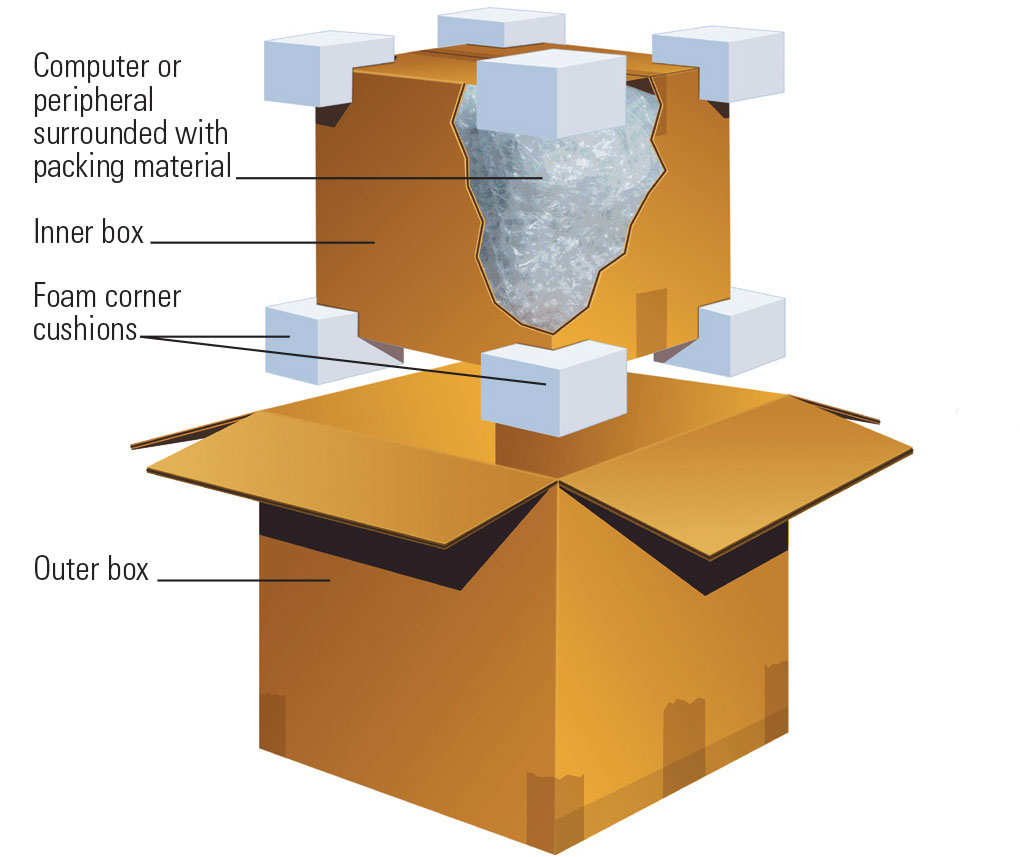
- Consider double-boxing for expensive laptops
💼 Business Solution from Yian Packaging: For electronics retailers and PC builders shipping laptops regularly, we offer custom laptop boxes with pre-installed foam inserts. Reduce packing time by 60% while ensuring consistent protection. Get wholesale pricing for orders of 100+ boxes.
Screen Protection: Avoiding Pressure Points and Impact Damage
Laptop screens are extremely fragile and expensive to replace:
Screen protection steps:
- Place a protective layer between the keyboard and screen (thin foam or cloth)
- Wrap the closed laptop in anti-static bubble wrap
- Pay extra attention to corners—add additional padding
- Never place anything on top of the wrapped laptop
- Position the laptop so the screen doesn’t face box corners
Critical: Make sure no pressure is applied to the screen surface. Even light continuous pressure can cause permanent damage.
Protecting Computer Monitors and Peripherals During Transport
Monitors and peripherals require their own packaging strategies.
Monitor Packaging: Face-Down Positioning and Screen Protection
Monitors are one of the most fragile computer components:
Preparation:
- Remove the monitor base and any attachments
- If the base cannot be removed, wrap it separately
- Disconnect and pack all cables separately
Screen protection:
- Place a layer of foam or bubble wrap against the screen
- Wrap the entire monitor in 3-4 inches of bubble wrap
- Pay special attention to screen corners
Box positioning:
- Ship monitors face-down in the box
- Never ship with the screen facing up or on its side
- Ensure 3 inches of cushioning on all sides
- Use double-wall boxes for monitors over 27 inches
Keyboard, Mouse, and Cable Packaging Tips
Peripherals need protection too, but are often overlooked:
Keyboards:
- Wrap in bubble wrap to protect keys
- Don’t place heavy items on top of keyboards
- Mechanical keyboards should be shipped with keycaps protected
Mice:
- Wrap in bubble wrap
- Protect scroll wheels from pressure
Cables:
- Coil loosely and secure with twist ties
- Label each cable clearly
- Pack in a separate bag to prevent tangling
Packing Multiple Components in One Box Safely
If you need to ship multiple items together:
Rules for multi-component shipping:
- Each component must be individually wrapped
- Never let components touch each other in the box
- Use dividers or separate inner boxes for each major component
- Fill all void spaces completely
- Consider total box weight—over 50 pounds increases damage risk
Best practice: If you’re shipping a complete system (tower, monitor, keyboard, mouse, cables), use multiple boxes. One large box packed with multiple items is difficult to handle and increases damage risk.
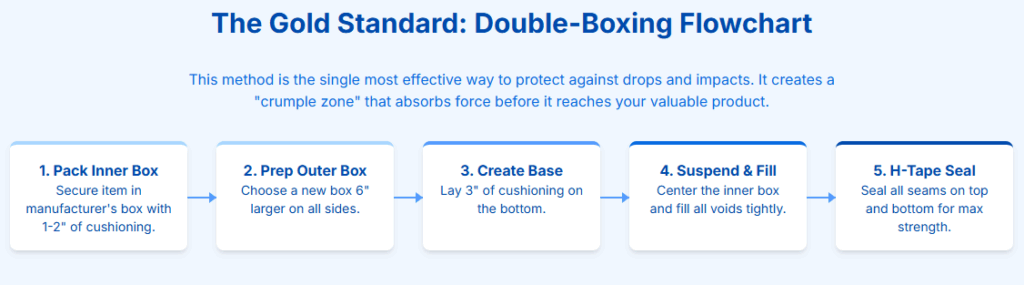
Double-Boxing Method for Maximum Computer Protection
Double-boxing is the professional standard for high-value electronics shipping. It creates two protective barriers around your computer.
When to Use Double-Boxing for Computer Shipping
Always use double-boxing for:
- Any computer valued over $500
- Gaming PCs and custom-built computers
- Computers being shipped internationally
- Computers in original manufacturer packaging
The problem with single boxes:
Even the strongest box can be punctured, crushed, or dropped. A single layer of protection means one failure destroys your computer.
Inner Box Preparation and Placement
Step 1: Pack the Inner Box
- Place your wrapped computer in an appropriately-sized box
- Fill all void spaces with cushioning
- Seal the inner box completely with packing tape
Step 2: Prepare the Outer Box
- Choose a box at least 6 inches larger than the inner box in all dimensions
- The outer box must be a new, double-wall corrugated box
- Line the bottom with 3 inches of packing material
Step 3: Position the Inner Box
- Center the inner box inside the outer box
- There should be equal space on all sides
Creating the Protective Buffer Zone Between Boxes
The space between the inner and outer boxes is your buffer zone:
Fill the buffer zone:
- Add packing material on all six sides of the inner box
- Maintain at least 3 inches of cushioning on each side
- Pack firmly—loose material compresses during shipping
- Use packing peanuts, air pillows, or foam blocks
Verification:
- The inner box should not shift when you move the outer box
- Press down on the top cushioning—it should not compress more than 1 inch
- Shake test: no movement should be detectable
H-Taping Method for Secure Box Sealing
The H-taping method provides maximum seal strength:
How to apply H-taping:
- Center strip: Apply one strip of tape down the center of the seam
- Edge strips: Apply strips along both edges of the seam
- Cross strips: Apply strips across the ends of the flaps
- Repeat: Apply the same pattern to both top and bottom
This creates an “H” pattern that:
- Prevents flaps from popping open
- Distributes stress across multiple tape lines
- Resists failure even if one strip peels
Tape requirements:
- Use packing tape at least 2 inches wide
- Apply at least 3 strips per side
- Press firmly to ensure adhesion
Common Computer Packing Mistakes to Avoid
Learning from others’ mistakes can save you from costly damage. These are the errors that cause most computer shipping failures.
Why You Should Never Ship a Computer on Its Side or Upside Down
The motherboard problem:
Motherboards are designed to be horizontal, with components standing upright. When you ship a computer on its side or upside down:
- Components hang at unnatural angles, stressing their connections
- The weight of components puts leverage on mounting points
- Solder joints and connectors can crack under the stress
- Hard drive bearings can be damaged
Always ship computers in the same orientation they sit on a desk.
The Dangers of Using Newspaper or Towels as Cushioning
Newspaper and towels might seem like convenient cushioning materials, but they’re dangerous for electronics:
Why they fail:
- Newspaper compresses under weight, providing no shock absorption
- Ink transfers onto electronics, potentially causing contamination
- Paper generates static electricity when moved, risking ESD damage
- Towels and cloth hold moisture, promoting corrosion
- These materials shift during transit, leaving areas unprotected
The result: Your computer bounces around inside the box with each handling event.
Leaving GPUs Installed: A Leading Cause of Motherboard Damage
This mistake accounts for 40% of all motherboard damage during shipping:
What happens:
A GPU weighing 2-4 pounds hangs from the motherboard by a single PCIe slot and 1-2 small screws. During shipping:
- Vibration causes the heavy GPU to act as a lever
- The PCIe slot connection weakens and eventually snaps
- The motherboard cracks around the mounting area
- In severe cases, the GPU breaks free entirely and damages other components
The solution: Always remove the GPU and ship it separately in an anti-static bag.
Insufficient Insurance Coverage for High-Value Electronics
Carrier default coverage is typically only $100—far less than most computers are worth:
Insurance options:
- Carrier declared value: Limited coverage, difficult claims process
- Third-party shipping insurance: Cheaper, broader coverage, easier claims
- Can include: “Porch piracy” protection that carrier insurance doesn’t cover
Recommendation: Always purchase insurance that covers the full replacement value of your computer. For high-value items ($500+), require adult signature upon delivery to prevent theft.
Final Checks Before Shipping Your Computer Package
These final steps can make the difference between a successful shipment and a damaged computer.
Labeling Requirements: Fragile, Electronics, and Orientation Markings
Proper labeling increases the chances your package will be handled correctly:
Essential labels:
- “FRAGILE” stickers on top and all sides of the box
- “THIS SIDE UP” arrows indicating correct orientation
- “ELECTRONICS” marking on the shipping label
- Handling instructions if required by your carrier
Important note: Labels don’t guarantee careful handling, but they do increase awareness. The shipping label should always be placed on the top of the box—this increases the chance your package will travel in the correct orientation.
Shake Test: Ensuring No Movement Inside the Box
Before sealing, perform the shake test:
- Close the box flaps (don’t seal yet)
- Lift the box and shake it gently in all directions
- Rotate the box and shake again
- Listen for any movement, rattling, or shifting
- If you detect movement, open and add more cushioning
A properly packed box has zero internal movement. Any sound or sensation of movement indicates insufficient cushioning that could lead to damage.
Documentation and Photographic Evidence for Insurance Claims
Documentation is your proof if something goes wrong:
Before packing:
- Photograph the computer from all angles showing its condition
- Photograph individual components
- Photograph serial numbers
During packing:
- Photograph the cushioning layers
- Photograph the computer positioned in the box
- Photograph the sealed box showing labels
Keep records:
- Save all photos with date stamps
- Keep the purchase receipt or appraisal
- Record the serial number and specifications
Why this matters: Insurance claims require proof of the item’s condition before shipping. Without photos, you may not be able to prove that damage occurred during transit rather than before.
Choosing the Right Shipping Carrier for Computer Transport
Different carriers have different strengths:
USPS:
- Best for: Small, lightweight packages under 70 lbs
- Pros: Lowest cost, no residential surcharges, delivers everywhere
- Cons: Limited tracking, size restrictions, lower insurance limits
- Recommended for: Laptops, components, peripherals
UPS:
- Best for: Large, heavy packages up to 150 lbs
- Pros: Reliable handling, excellent tracking, high weight limits
- Cons: More expensive, residential delivery fees
- Recommended for: Desktop computers, monitors, complete systems
FedEx:
- Best for: Express and overnight shipping, B2B deliveries
- Pros: Fast delivery, professional handling
- Cons: Highest cost for ground services
- Recommended for: Time-sensitive shipments, business deliveries
All carriers have specific regulations for shipping lithium batteries. Check their guidelines before shipping laptops or devices with batteries.
Why Professional Packaging Boxes Are Worth the Investment
At this point, you might be wondering: “Can’t I just use any cardboard box I have lying around?” The answer depends on how much risk you’re willing to accept.
The True Cost of Cheap Packaging
Let’s break down the math:
| Scenario | Packaging Cost | Risk of Damage | Potential Loss |
|---|---|---|---|
| Reused single-wall box | $0 | High (40%+) | $500-3,000+ |
| New single-wall box | $2-4 | Medium (20%) | $500-3,000+ |
| New double-wall box | $4-8 | Low (5%) | $500-3,000+ |
| Professional custom box | $6-12 | Very Low (<2%) | $500-3,000+ |
The reality: Saving $5-10 on packaging doesn’t make sense when you’re protecting a $1,500+ computer.
What Makes Yian Packaging Different
As a professional cardboard box manufacturer, we understand that packaging isn’t just a box—it’s your last line of defense.
Our commitment to quality:
✅ Premium Materials: We use only virgin kraft paper for outer layers, ensuring maximum strength and moisture resistance
✅ Quality Testing: Every batch is tested for burst strength (Mullen) and edge crush test (ECT) ratings before shipment
✅ Custom Sizing: No “close enough” sizes—we manufacture boxes to your exact specifications, eliminating dangerous void spaces
✅ No Minimum Orders: Need just 10 boxes for a one-time shipment? No problem. Need 10,000 for monthly shipping? We scale with you.
✅ Fast Turnaround: Standard sizes ship within 48 hours. Custom orders typically complete within 5-7 business days
✅ Eco-Friendly Options: All our boxes are 100% recyclable and made from sustainably sourced materials
Real Results from Real Customers
“We were losing 3-4 computers per month to shipping damage before switching to Yian Packaging’s custom double-wall boxes. After six months with their boxes, we’ve had zero damage claims. The boxes pay for themselves many times over.”
— Michael T., PC Builder, Texas
“As an e-commerce store selling gaming laptops, we needed reliable packaging fast. Yian delivered custom-sized laptop boxes with foam inserts within a week. Our customers now compliment our professional packaging.”
— Sarah L., Electronics Retailer, California
Get the Right Packaging for Your Computer Shipping Needs
Don’t leave your valuable electronics to chance. Whether you’re shipping one computer or hundreds, Yian Packaging has the right solution.
What We Offer
📦 Standard Computer Boxes
- Desktop computer boxes (various sizes)
- Laptop shipping boxes with foam inserts
- Monitor shipping boxes
- Component boxes (GPUs, peripherals)
📦 Custom Packaging Solutions
- Custom dimensions to fit your exact products
- Double-wall and triple-wall construction
- Custom printing (your logo, handling instructions)
- Foam inserts and dividers
📦 Wholesale Pricing
- Competitive pricing for bulk orders
- Volume discounts for regular customers
- Drop shipping available for e-commerce businesses
Protect Your Investment with Professional Packaging
Shipping a computer safely requires attention to detail, quality materials, and proper technique. By following the steps in this guide, you can dramatically reduce the risk of damage during transit.
